Moonfade Blog
Start your first Moonfade sleep timer: screenshots and demo
Start your media, choose a duration, check playback and fade settings, complete screen-lock activation, and test the ending on your Android device.
Start playback in your usual media app, choose a duration in Moonfade, check the ending settings, and tap Start. Complete the Android Device Admin activation when prompted before the countdown can begin. Test the ending with your own player before relying on a long session.
Open the five-step screenshot demo. It shows setup, activation, a running timer, and how to remove screen-lock access. You control the steps; there is no autoplay.
These screens were captured on October 11, 2026 in Moonfade's separate Android 36 QA emulator build, using the same timer and settings UI as release 1.0.1. Android calls the test app “Moonfade Sandbox.” The demo's 15-minute timer was started and stopped early. It is not a full expiry recording, a Google Play purchase test, or proof that a particular player pauses on a physical phone.
1. Start your usual media first
Moonfade provides the timer, not the music, podcast, audiobook, or video. Start something in the media app you actually use, confirm that it is playing, and then open Moonfade. No Moonfade account is required. Install Moonfade on Google Play if needed; it supports Android 8.0 or later.
2. Choose a duration
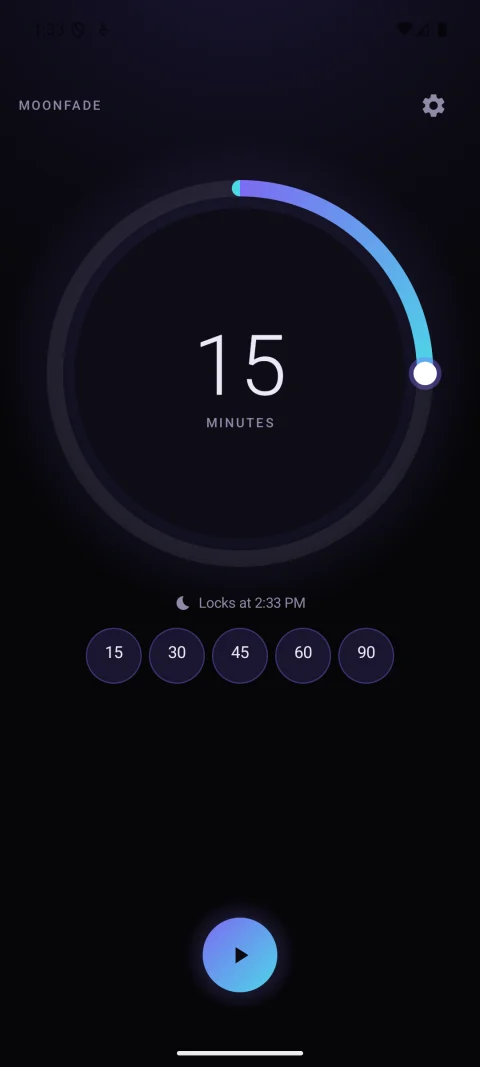
Turn the dial to select 1 minute to 24 hours, or use a built-in preset: 15, 30, 45, 60, or 90 minutes. Confirm the displayed duration before starting. For your first compatibility test, use the dial to select a short duration such as one minute; the screenshot demo uses the 15-minute preset and cancels it early.
3. Check Stop audio & video and Fade out
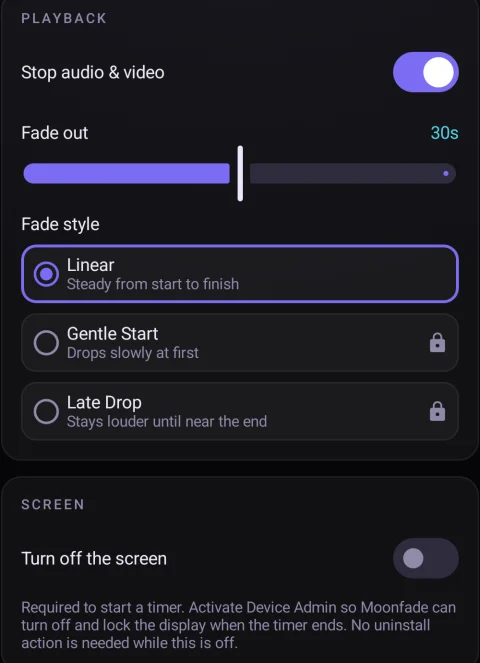
Open Settings. Enable Stop audio & video if you want the playback-ending request, and choose Fade out from 0 to 60 seconds. The gradual media-volume fade begins after the countdown ends, followed by the audio-focus request to pause playback.
For example, one minute plus a 30-second fade means approximately 90 seconds before that request. Zero skips the gradual fade interval. The basic Linear fade is available without Pro; Gentle Start and Late Drop are optional Pro features.
Lower volume, a request to pause, and a locked screen are different results. A quiet player may still be advancing. Android and the media app determine whether playback actually pauses. Use the player-response test guide for a fuller check.
4. Tap Start and complete screen-lock activation
Return to the timer and tap Start. If prompted, read Activate screen lock, then select Activate to open Android's Device Admin screen. Review Lock the screen and select Activate this device admin app if you want to proceed. The current in-app Start flow requires activation before the countdown starts. Declining it leaves the timer unstarted.
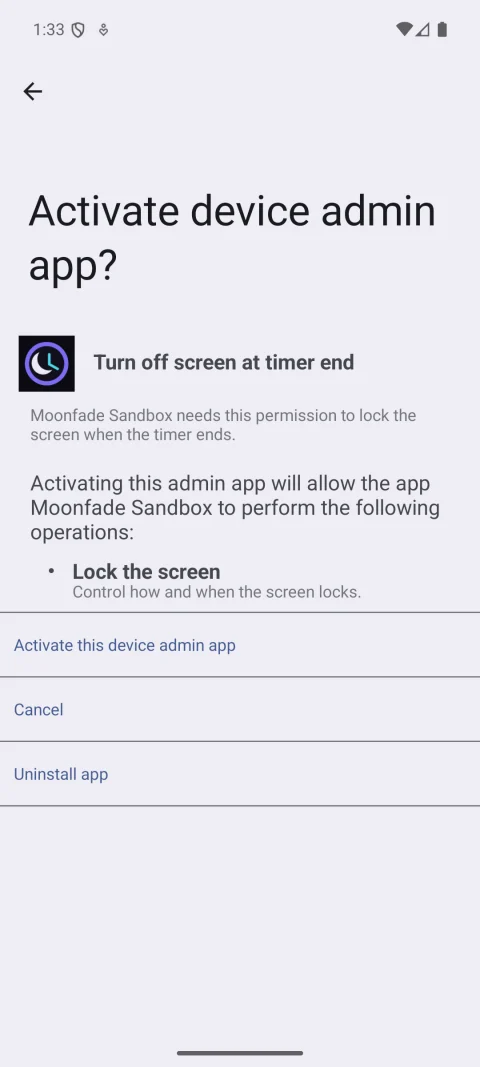
Android 36 emulator example. Labels and appearance can differ on your phone. This permission allows Moonfade to turn off and lock the display; it does not prove that a media player will pause.
The running timer replaces Start with Stop. Use Stop to cancel it early. If you allow notifications, the active timer notification also provides add-time, subtract-time, and stop actions. Notifications were declined during this capture session, so those controls are not part of the new demo.
5. Observe a complete short test on your device
For your own one-minute test, allow the countdown and any additional fade to finish. Check each result separately:
- Did the countdown finish?
- Did media volume fade when configured?
- Did the player actually pause, or is its position still advancing?
- Did the screen lock when screen lock was active?
Only the results on your own device establish whether that setup works for you. If playback continues, see Media keeps playing after a Moonfade timer or contact support with the Android version, phone model, player, and what happened.
Remove screen-lock access before uninstalling
Stop any active timer. In Moonfade → Settings, turn off Turn off the screen. Moonfade removes its Device Admin permission when you do. This removal was verified in the emulator; starting another in-app timer asks for activation again.
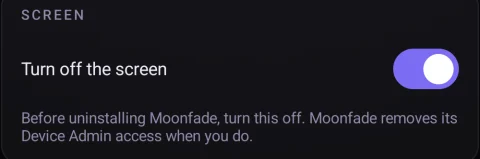
If the app cannot be opened, remove Moonfade through Android's device-administrator settings before uninstalling; the system path varies. See the uninstall guide.
Optional Share anonymous usage results is off by default and is not required for a timer. It remained off during these captures, and the test activity was excluded from the production usage baseline.