Moonfade Blog
What Does Moonfade Pro Unlock for Timer Appearance?
Moonfade Pro is an optional one-time Google Play purchase that unlocks four additional night themes. Themes change how the timer screen looks, not how the countdown, fade, or playback behaves.
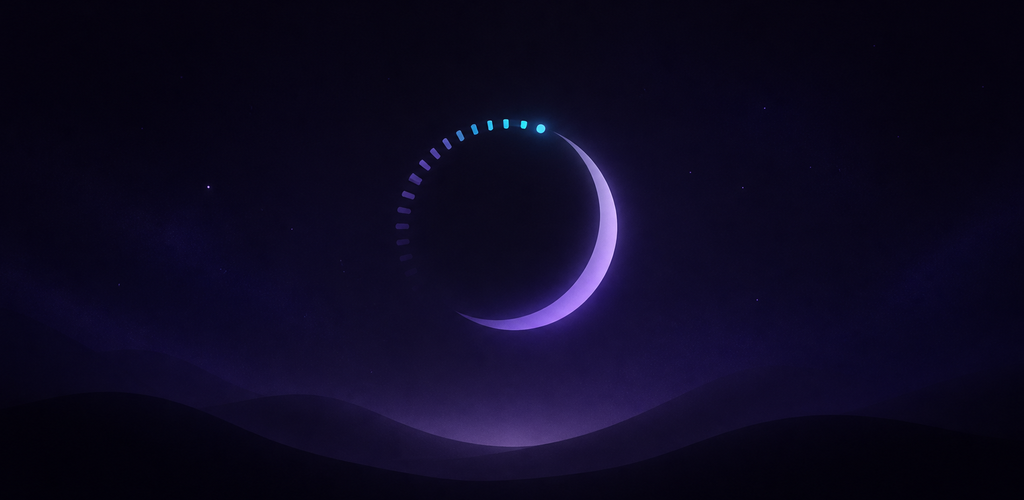
Moonfade Pro is an optional one-time Google Play purchase that unlocks four additional night themes. A theme changes how the timer screen looks. It does not change the countdown length, the fade, or whether your player pauses, so treat it as appearance-only personalization rather than a sleep or health feature. Official product overview.
What the four night themes are
Moonfade ships with a set of built-in looks for the timer screen. Pro adds four more night themes to that set, giving you more ways to match the timer to your screen or your mood. The exact appearance of each theme is a visual choice; the underlying timer behavior stays the same regardless of which one you pick.
This matters if you dislike a bright timer screen at night, or simply want the timer to sit quietly alongside the rest of your phone's look. It does not promise better sleep, dimmer light for your eyes, or any health outcome. It is a skin for the timer interface.
With Stop audio & video enabled, countdown completion starts the configured 0–60-second media-volume fade, followed by an audio-focus request to pause playback. Moonfade then separately requests display lock when Turn off the screen is enabled. Disabling Stop audio & video skips both fade and audio focus. These requests do not prove that the player paused or the physical display locked.
What a theme does not change
Choosing a theme does not affect:
- the duration you set with the dial or a built-in preset (15, 30, 45, 60, or 90 minutes);
- the 0–60-second media-volume fade, which begins after the countdown ends, not during it;
- the request to pause playback, whose success depends on your media app and Android device;
- Device Admin activation, which is still required before the countdown can begin in the current version;
- whether Stop audio & video is enabled in Settings.
A theme is cosmetic. If your timer is not pausing playback, changing the theme will not fix it; check Stop audio & video and test a short timer with your usual player instead. For the timing itself, see how the countdown and fade are ordered.
How the theme is stored
Theme choices are part of the settings Moonfade keeps locally on your device, along with timer settings, presets, and fade choices. There is no Moonfade account to sync them through. That also means Android backup and device transfer are disabled for the app, so a theme you pick on one installation does not carry over to a new phone or a fresh install; you reselect it. If you clear app data or uninstall, the theme choice is removed too. The full picture is in where Moonfade stores local settings and personalization.
Note that "stored locally" is not a privacy claim about the whole app. Google Play handles purchases, and the free version may show ads through Google Mobile Ads; advertising and consent services can process data, and Privacy choices in Settings is where applicable advertising choices appear. The privacy policy explains those services and the limited reviewer-code verification service, which does not receive timer settings.
Pro is a purchase, not a subscription
Moonfade Pro is an optional one-time Google Play purchase, not a subscription. Alongside the four night themes, it removes ads and unlocks five editable quick presets, a home-screen timer widget, and Gentle Start and Late Drop fade curves. The fade curves change fade behavior; the themes do not. If you already bought Pro and the themes are missing, use Restore purchase on the Moonfade Pro screen with the Google Play account that made the purchase. If that fails, contact support with your Google Play order ID, and never send card, bank, password, or authentication details. More on that process: restoring a Moonfade Pro purchase.
A quick way to try it
- Start playback in your media app.
- Open Moonfade, choose a Pro night theme through the available appearance controls when Pro is active, and choose a duration with the dial or a built-in preset.
- Tap Start, then complete any prompted Android Device Admin activation for screen lock before the countdown can begin.
- Inspect the timer’s appearance. Keep the duration and ending settings the same when comparing themes; a theme choice changes appearance only.
- Keep the timer notification available so you can add time, subtract time, or stop the timer without reopening the app.
If you want to compare the free and paid feature sets side by side first, see Moonfade free features versus Pro.
Summary
The four additional night themes in Moonfade Pro are appearance-only personalization for the timer screen. They do not alter the countdown, the 0–60-second fade that runs after it, or whether your player pauses, and they carry no sleep or health claim. Theme choices are stored locally and do not transfer to a different installation, so reselect them after a reset or a new phone.
Get Moonfade on Google Play and try one of the Pro night themes on a short timer to confirm the timer behavior you already rely on stays the same. Installing the app does not guarantee that any particular player will pause.